Desktop · Guides
Use TALOS from your device (Remote Control)
Pair your Android device with TALOS Desktop, confirm it on the computer, and drive the PC's sessions, approvals and models from the device.
Checked on Desktop 0.1.38
A newer version is out (Desktop 0.2.4): some details may differ.
With Remote Control, TALOS for Android uses TALOS on your PC: the PC’s sessions in Code, the PC’s models in the picker, approvals and questions answered from the device, and a notification when a session waits for you. The work still runs on the computer; the device is a window on it.
Pair a device
Section titled “Pair a device”- On the PC, open Connected devices — the device icon in the header (it shows a dot when a device is online), or Settings › Connected devices.
- The first time, choose How does the device reach this computer away from home?: Free servers by n0 (works
right away, with a traffic limit) or My own server (run
talos-relayon a server of yours and paste its address). Then Continue. The connection is end-to-end encrypted, and direct at home when possible. - The Connect your device window shows a QR code that works once and expires in a few minutes.
- On the device, open Computer, tap Connect a computer and scan the code.
- The PC asks Connect this device? and shows a 6-digit number. If the device shows the same number, it is yours: choose Connect. Device connected confirms it.
The paired device can do on this computer whatever you do, Full access included. The code alone connects nothing: you always confirm on the computer.
Manage the devices
Section titled “Manage the devices”Settings › Connected devices lists each device, online or offline, with its connection (direct, N ms or via server, N ms) or when it was last seen. Revoke disconnects one at once; Connect another device pairs the next. Up to 16 devices; after too many wrong attempts, pairing pauses for 15 minutes.
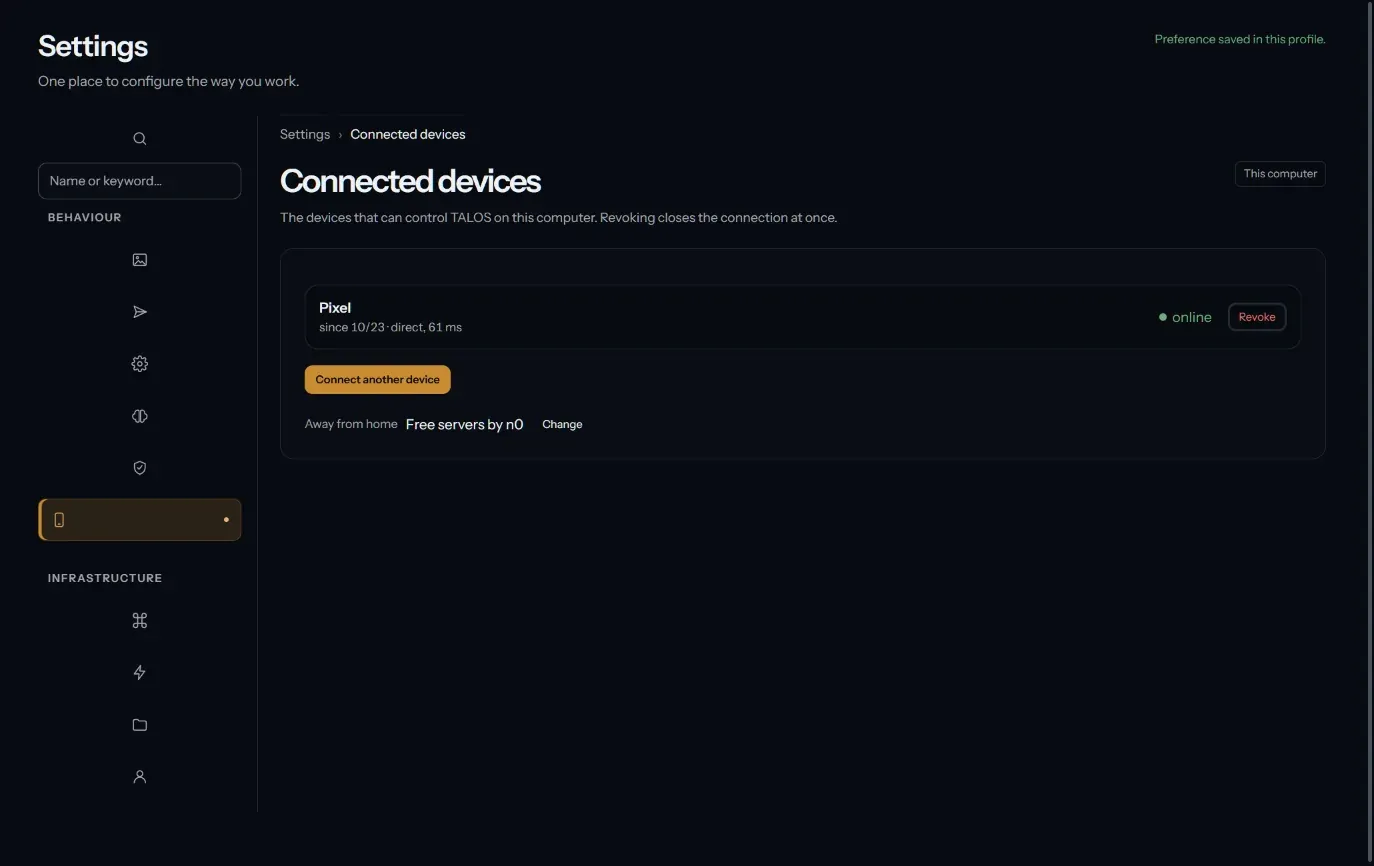
You can also ask TALOS in the chat to list the paired devices, show the pairing code (a Connect a device card that asks you first, even in Full access) or revoke one (a confirmation card). The model never sees the code.
What the device can do
Section titled “What the device can do”- Sessions. The PC’s sessions appear in Code on the device; start a new one on the PC in a folder it is allowed to use (see below).
- Approvals and questions. Permission cards and the model’s questions are answered from the device. A request made from the device reaches the PC at once.
- Models. The device’s model picker shows the PC’s models.
- Files and images. The device can attach files and images to a conversation on this PC. A transfer pauses when the connection drops and resumes where it stopped.
- Notifications. A device that is not connected is woken when a run fails or a session waits for you (never for a sub-agent).
Folders the device can work in
Section titled “Folders the device can work in”A device works only in folders of this PC that you allowed. It asks once for a folder, and you allow it from a card: Allow ‹device› to work in “‹folder›”? From the device it can then read, write and run commands there, until you revoke it.
Settings › Connected devices shows each device’s Allowed folders: Add folder allows one in advance (Which folder can … work in?, then Allow this folder), and Revoke takes one back. The model can list, allow and revoke folders too, always behind a card — allowing one always asks, Full access too.
Send a file to the device
Section titled “Send a file to the device”A file in the conversation has Send to … (the device’s name) in its ⋯ menu and on right-click; with more than one device, Send to device… lets you choose. The model can send one too, with a card you confirm (no card in Full access). Under the file, a line says whether it was sent, is downloading, was downloaded, or changed on the PC before the download. A device that is offline gets the file when it connects again. Files up to 25 MB.
Turn remote control on or off from the chat
Section titled “Turn remote control on or off from the chat”Ask TALOS in the chat. Turning it on shows a Turn on remote control card — asked every time, also in Full access — and can show the pairing QR in the chat. Turning it off shows Turn off remote control: connected devices will not reach this computer until you turn it on again, and they stay paired.
The device side is described in Remote Control on Android.